
Ask AI on a data model#
Early release. This feature is in early release, so its screens and behavior may change. Tell us what you think with Send feedback. See Early release features and Send feedback.
Ask AI is an assistant built into the data model editor. It works in two places. On the Source screen it looks at all of the model's sources and suggests views, joined views, and hierarchies. Inside a view it changes the view you have open: renames fields, adds filters, sets how a variable is asked for, and more. In both places it proposes changes as a list for you to review. Nothing is applied until you choose, and nothing is saved until you select Save Changes.
When to use it. Use it to start a model over an unfamiliar source ("suggest views for monthly sales by region, for finance"), or to do tidy-up work in bulk ("drop the prefixes from every field name and hide the id columns"). For a few precise changes on a view you know well, the view's own tabs are often quicker.
Before you start#
- An AI provider set up by an administrator in Settings > Integrations. See Connect an AI provider. With none enabled, the panel says "No AI model is set up. An administrator can add one in Settings, Integrations, AI." and offers nothing to run.
- The assistant uses the AI connection selected for the in-app chat assistant when one was selected and is enabled; otherwise it uses the first enabled AI connection. See The AI assistant.
- Permission to edit the data model.
What the assistant reads and sends. It never writes SQL and never changes the model without you. To do its work it does send real information to your AI provider.
- On the Source screen, when you select Analyze my data, it lists each source's tables (up to 80 per source) with their columns and links, and reads two sample rows from each of up to 40 tables per source (12 for a cloud connector, where each read is a call to the service's API). It sends the provider the source names and types, the table and column names and types, the links, the names and fields of your existing views, the names and levels of your hierarchies, and the sample rows, each value cut to 40 characters. The sample reads run against every source, including a connection an administrator has disabled.
- Inside a view, it reads no rows. It sends the model and view names, each field's name, type, and the one sample value the field already holds (cut to 40 characters), each filter with its value, each variable with its default and caption, the view's relationships and, for a joined view, its joins, the names and fields of the model's other views, and the conversation so far.
Decide whether that suits the source before you ask.
Ask AI on the Source screen#
- Open the data model and select Source in the rail.
- Select Ask AI at the top right. The panel opens over the editor, headed Data model assistant. Drag its header to move it; double-click the header to dock it again.
- Select Analyze my data. The assistant reads the sources, explains what the data is and which questions it can answer, and offers options.
- Say what you want in the box, or pick a starter (see Starter requests). When it proposes views or hierarchies, each has a check box. Turn that into views asks it for a concrete set.
- Untick anything you do not want and select the add button, which names how many views it adds, for example Add these 4 views. They are added unsaved.
- Review them, then select Save Changes, or Discard.
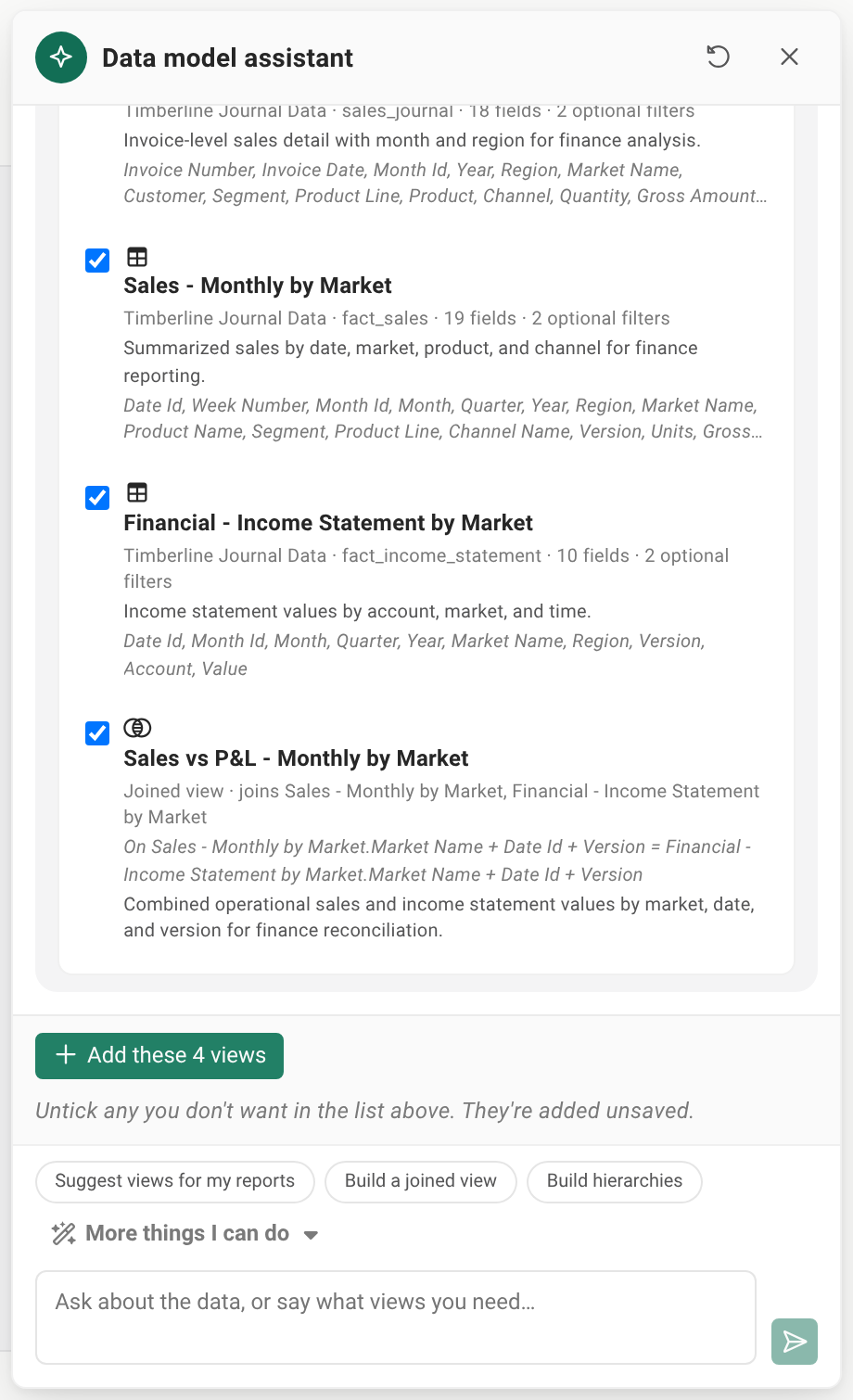
Every proposed view is checked against what the source really has; a table, column, or link that does not exist is left out with a note. A filter the assistant proposes becomes an optional filter variable. Start over clears the conversation.
Ask AI inside a view#
- Open a view or a joined view and select Ask AI in its header, beside the Public, Hidden, and Disabled choice. The button appears only when an AI provider is set up. The panel is headed "Ask about" and the view's name.
- Say what to change, for example "Tidy the field names and hide the id columns", or pick a starter and finish it.
- The assistant lists its changes, each with a check box and a plain line saying what it does, such as "Rename cust_nm to Customer". Clear the check box of any you do not want.
- Select Apply selected. The changes are applied in order and unsaved, exactly as if you had made them on the view's tabs. Each line then says applied, or skipped with the reason, and a summary such as "Applied 5 of 6" heads the list.
- Review the view, then select Save Changes or Discard.
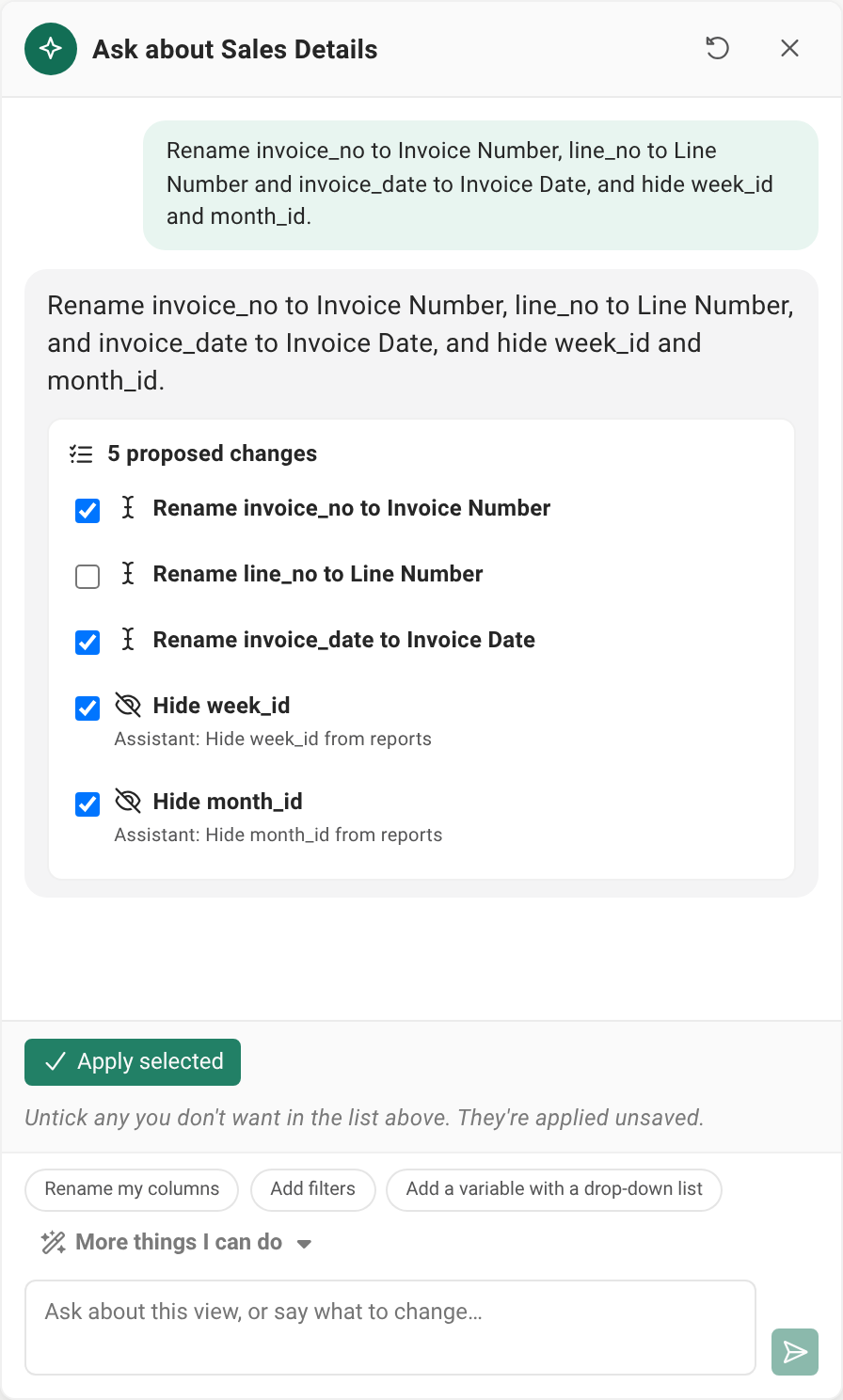
A change that cannot be made is grayed out with its reason and cannot be ticked, so you never apply it by mistake. For example, a change to a variable that the view does not have, or that is pasted into the query as raw text (see Data model variables), is grayed out. A change that cannot be made when you apply it, such as a field the view does not have or a join that would make a view read itself, is skipped and the rest still apply. A change the assistant does not support yet shows as "Not supported yet" and is never applied. Each view keeps its own conversation while the editor is open.
Starter requests#
Picking a starter never sends anything. It puts the start of a request in the box with a bracketed part selected, and shows a question above the box with a few example answers. Type over the bracketed part, or select an example, edit as you like, and send. If you had already typed something, it stays and the starter goes on a new line after it. Pressing Enter while the bracketed part is still there selects it again rather than sending half a request.
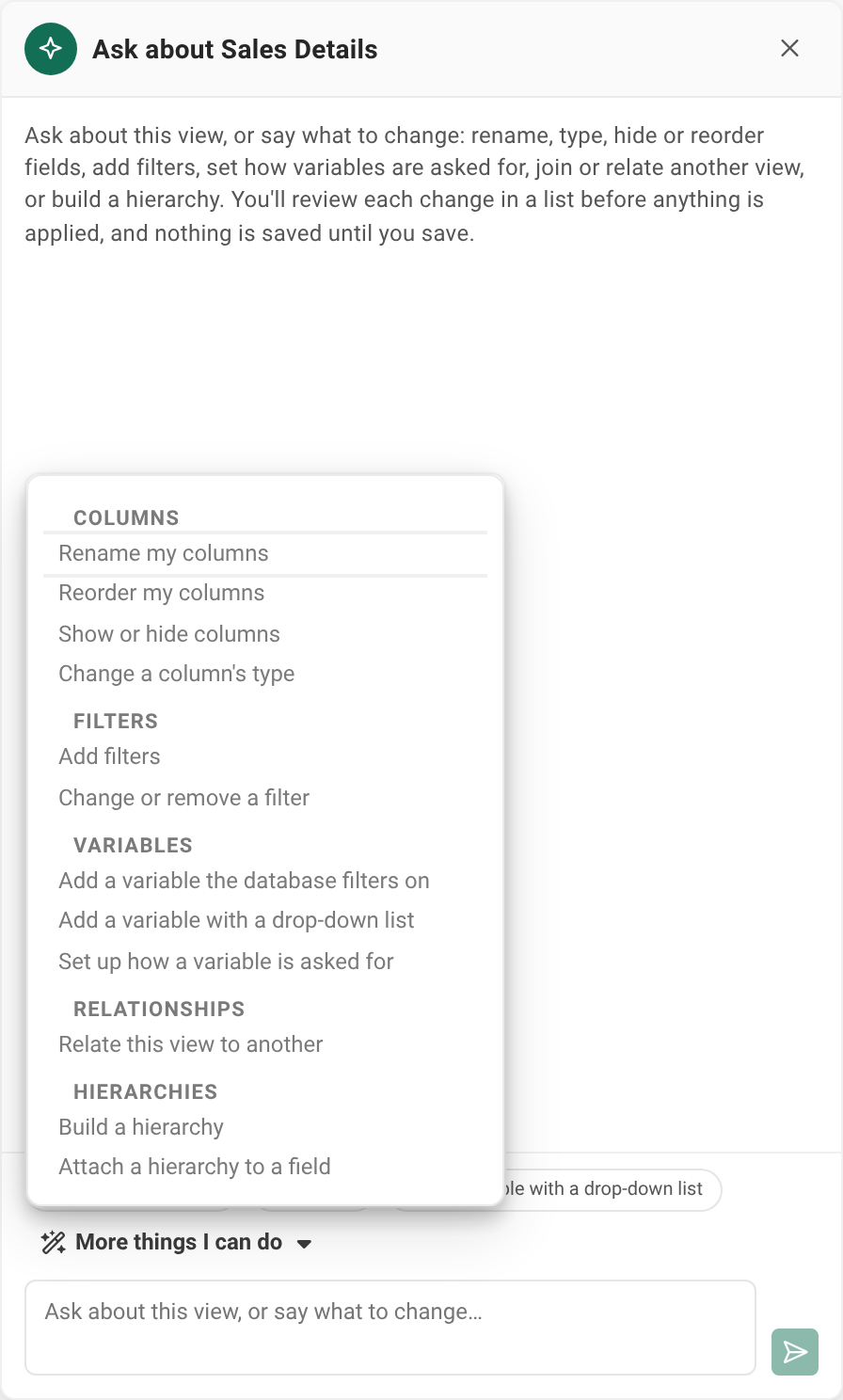
The first three starters appear as chips under the chat; More things I can do opens the whole list. The list works from the keyboard: open it with Enter or Space, move with the arrow keys, press Enter to pick, and Escape or Tab to close it.
On the Source screen#
Starters appear once the conversation has started. The chips are marked below.
| Group | Starter | What goes in the box | Chip |
|---|---|---|---|
| Views | Suggest views for my reports | Suggest views for: [what your reports cover] |
Yes |
| Joins | Build a joined view | Build a joined view of: [which data belongs together] |
Yes |
| Joins | Find where my sources could join | Find where my sources could join: [which sources or tables] |
No |
| Hierarchies | Build hierarchies | Build hierarchies for: [which roll-ups] |
Yes |
| Understand the data | Explain what is in my sources | Explain: [what you want to know about the sources] |
No |
| Understand the data | Tell it our naming standards | We name views and fields like this: [your naming standard] |
No |
Views proposed from now on follow the naming standard you give. On the Source screen the assistant does not change a view you already have: to do that, open the view and use Ask AI there.
Inside a view#
| Group | Starter | What goes in the box | Offered on |
|---|---|---|---|
| Columns | Rename my columns (chip) | Rename my columns: [how you want them named] |
Every view |
| Columns | Reorder my columns | Put my columns in this order: [which come first] |
Every view |
| Columns | Show or hide columns | Show or hide columns: [which ones] |
Every view |
| Columns | Change a column's type | Change column types: [which columns, and to what] |
Every view |
| Filters | Add filters (chip) | Add filters: [which rows to keep] |
Every view |
| Filters | Change or remove a filter | Change this view's filters: [which filter, and how] |
Every view |
| Variables | Add a variable the database filters on | Add a variable the database filters on: [which field, and how each report picks it] |
A view of one source |
| Variables | Add a variable with a drop-down list (chip; on a joined view it is in the list, not a chip) | Add a variable with a drop-down list: [which field, and which view lists the choices] |
Every view |
| Variables | Set up how a variable is asked for | Set up how a variable is asked for: [which variable, and its default, caption, help or whether it is required] |
Every view |
| Joins | Join another view (chip) | Join another view: [which view, and on which fields] |
A joined view |
| Joins | Change how rows match | Change how a join matches rows: [which join, and how] |
A joined view |
| Joins | Remove a join | Remove a join: [which view to stop joining] |
A joined view |
| Relationships | Relate this view to another | Relate this view to another: [which view, and on which fields] |
Every view |
| Hierarchies | Build a hierarchy | Build a hierarchy: [which levels roll up] |
A view of one source |
| Hierarchies | Attach a hierarchy to a field | Attach a hierarchy to a field: [which field, and which hierarchy] |
A view of one source |
The three chips are Rename my columns, Add filters, and Add a variable with a drop-down list; on a joined view the third is Join another view.
Example answers the starters offer include "Title Case, with spaces between words", "hide the internal ids and audit columns", "a date range each report picks", "region, with the choices from a view of regions", and "default the start date to 2026-01-01".
What it cannot do#
Ask for something outside the lists above and the assistant says plainly that it cannot do it here and proposes nothing.
- It never writes SQL or changes a view's query. Say what to change, and change it on the view's Design tab. A suggestion that comes back with SQL in it is left out with a note.
- It does not add calculated or literal fields. A field must map to a source column.
- It does not change a source or save for you.
- It never sets a variable that is pasted into the query as raw text. That setting stays with you.
- On the Source screen it does not change an existing view.
- A hierarchy it proposes is not checked against the data. It does not compare a hierarchy's values with the field's values, so open it on the Hierarchies tab and select Preview tree before you save. See Build hierarchies.
Notes and limits#
- It needs an AI provider, and its answers depend on that provider's model. Review every change.
- Customized instructions. An administrator can tune the assistant's instructions in Settings > AI Prompts (see The AI prompt store). A customized version keeps its text and does not gain the list of starters until it is reset to the default.
- Defaults it sets are filled into the query by the same safe rules as a value a reader types. See Data model variables.
- Samples, not the whole data. What it learns comes from sample values, not from every row.
Going deeper. The full account of each change type, what a reply looks like when nothing can be made, and the Source screen's proposals is in Data models and Ask AI inside a view.
Related topics#
Feedback on this page
Comments, questions, requests, or something missing or unclear? Email us - the page you are on is filled in for you.
Email feedback on this pageOr write to support@reportworq.com directly.