
Cell-driven variables#
Early release. This feature is in early release, so its screens and behavior may change. Tell us what you think with Send feedback. See Early release features and Send feedback.
A report filter or variable normally holds a fixed value. A cell-driven variable instead reads its value from a cell on the sheet, every time the report refreshes. Change the cell and refresh, and the report is queried again with the new value. One cell can feed several reports.
When to use it. A cost-center cell on the Financial Reports sheet that a department head changes, a Scenario cell that flips a forecast between Budget and Forecast, or a Period cell that a distribution job fills with a different value for each run.
Where it works#
| Web report studio | Excel add-in | |
|---|---|---|
| Report filters and variables that read a cell | Yes | Yes. The cell is read from Excel itself on every refresh |
| Drop-downs above a report for data model variables and filters | Yes | Yes, as in-cell drop-downs |
| A distribution job writing the cell | Yes (a job's cell parameter) | Yes, when the job runs the workbook |
Before you start#
- A list or crosstab on a data model view. See List reports and Crosstabs.
- A cell that will hold the value: typed, a formula, or a drop-down made with data validation. Put it on the same sheet as the report that reads it.
- If the value goes into a data model variable, know its default and whether it is required. See Data model variables.
Bind a filter to a cell#
- Open the list or crosstab and go to Report filters (the Crosstab ribbon tab, or the editor menu).
- Add a filter. Pick the Field, leave Equals empty, and under Or variable choose a variable name, for example
Region. - Go to the Variables page. Each variable has a Name, a Cell and a Current value. Enter the cell, or select Use A1 to use the cell you have selected on the sheet. The top-left cell of a range is the one read.
- Refresh. The filter now uses the cell's value, and a line above the report shows the filter, its value and a "report filter" note that names the variable.
A blank cell keeps every row: the filter help reads "A blank cell keeps every row." For a data model variable, an empty cell falls back to the model's default for that variable. A variable with no value and no default blocks the report from running until you set one.
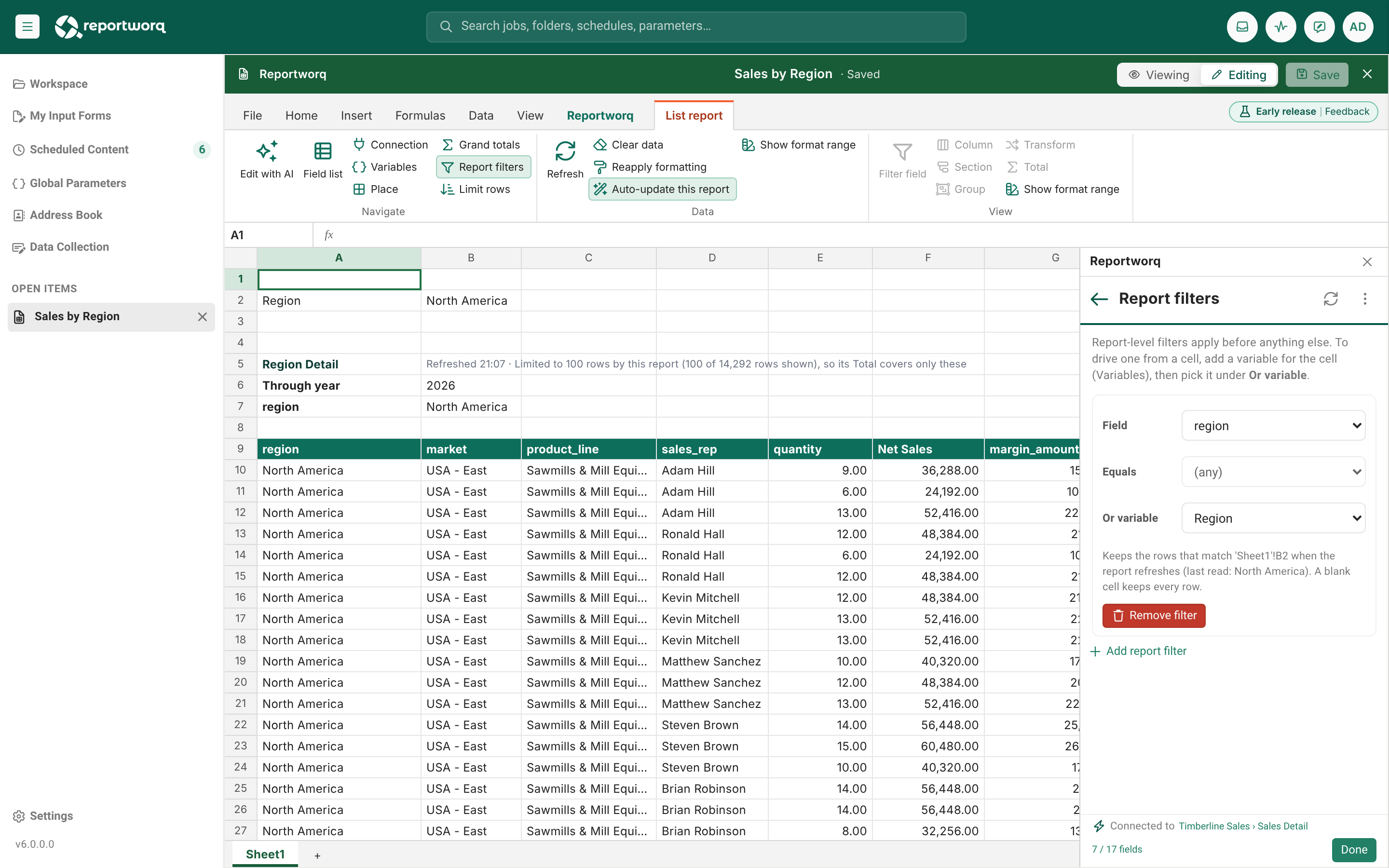
Variables are found automatically: from the data model's own variables, and from {{tokens}} used in report filters. A variable nothing references any more is removed.
Use the drop-downs above a report#
A crosstab writes its filters and data model variables above itself as in-cell drop-downs, in the style of a PivotTable: "(All)", one member, or "(Multiple items)". Picking one re-renders the report. Choose "(All)" to clear a filter and "(Any)" to clear an optional variable; Delete clears neither.
A variable that has a pick list and does not allow typing takes only a value on its list, a blank or the model's default. A pasted value that is not on the list shows "Not on the list", and the cell goes back to the value in effect. A list longer than 255 characters in all, or with a comma in an item, has no drop-down in real Excel, so the cell is plain text.
Drive the cell from a job#
A distribution job can write a value into a cell by parameter, which re-queries every report that reads it. This makes one workbook layout serve every department or period. Details of mapping are in A web report as a job source.
When a job's cell parameter can write a cell that a report filter reads, rules apply to protect recipients:
- A report filter reads a cell on its own sheet only. To use a value from another sheet, have the job write the value into a cell on the report's own sheet.
- A formula on the report's sheet that points at another sheet reads as an error, and the report comes out empty.
- If a hidden sheet holds a list or crosstab that does not filter on that cell, converting the web report is refused, so a recipient cannot get all of that report's data by accident.
Notes and limits#
- A variable's cell is read on every refresh. If Excel cannot be asked right now (a failed read, edit mode, writes still queued), the refresh stops with a "Try again" message that names the variable, and never filters on an old value.
- A reference that names nothing reads as blank. A reference to several cells takes the first.
- A value no row has shows "No row of the source has this value" beside the variable.
- A professional report's variables are fixed when the report is made and take no typing. See Professional reports.
- A chart's title and a map's center, zoom and tile settings can also be cell-driven. Use the small menu inside the field to choose From a cell. Map framing cells must be single cells on the map's own sheet.
- Values go into queries safely: a value can only be a value. See Data model variables.
Feedback on this page
Comments, questions, requests, or something missing or unclear? Email us - the page you are on is filled in for you.
Email feedback on this pageOr write to support@reportworq.com directly.