
Early release features and Send feedback#
An early release feature is new and still being shaped. It works and you can use it, but its screens and behavior may change as the team learns from how you use it. Every note you send is read by the team building the feature.
What is in early release#
| Feature | Where you see it |
|---|---|
| Data Models | The data model editor: a model's source connection, its views, and their fields and joins |
| Web reports | The web report editor and the viewer: a live workbook built on a data model |
| Excel add-in | The Excel task pane, including the analyst pane that is shared with the web report studio |
These are the areas that carry the Early release pill today. Other screens in Reportworq are not marked.
The Early release · Feedback pill#
On an early release screen you see a small pill that reads Early release · Feedback. It sits inside a row the screen already has, such as a toolbar or title bar, so it does not take up extra space. Select it to open the Send feedback dialog about that screen. Point to it to read: "

You do not need the pill to send feedback. The Send feedback button sits next to your avatar at the top right of every screen. On an early release screen its tooltip reads "Send feedback:
Send feedback#
When to use it. You hit something that looks wrong, or you were trying to do a thing and it was harder than it should be. For example, a view in the Timberline Sales Journals model shows a field you did not expect. Send feedback from that screen and the team sees the screen, a picture of it and who you are, with no copying and pasting.
Open the screen the feedback is about, or select the Early release · Feedback pill on it.
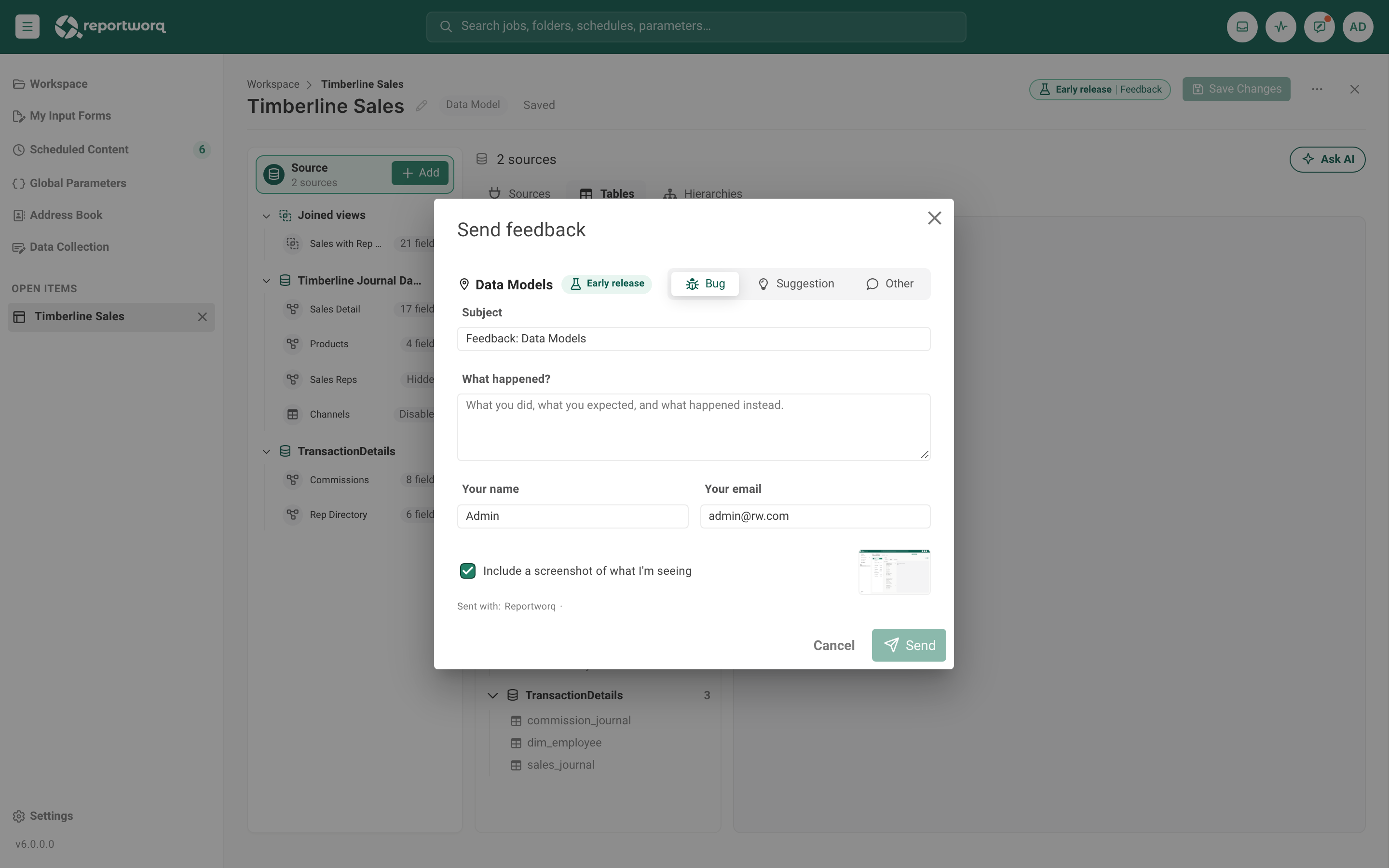
Select Send feedback next to your avatar. The dialog opens at once. The heading shows the screen's name, with an Early release tag when the screen is in early release. In the web report studio the heading currently reads Reportworq with no tag, and the Subject starts "Feedback: Reportworq".
Choose the kind: Bug, Suggestion or Other.
Review the Subject. It starts as "Feedback: " followed by the screen's name. You can edit it, up to 200 characters.
Write your message. The label changes with the kind:
Kind Label Hint in the box Bug What happened? What you did, what you expected, and what happened instead. Suggestion What would make this better? What you were trying to do, and what would have made it easier. Other What would you like to tell us? Anything at all. The message can be up to 8,000 characters.
Check Your name and Your email. They are filled in from your sign-in and you can edit them.
Decide about the screenshot (below), then select Send.
When it works, the dialog says "Thank you. Your feedback is on its way to the Reportworq team." Select Close.
The screenshot#
Reportworq takes a picture of the screen you were on, leaving out the dialog itself and the Send feedback button. It is taken after the dialog appears, so the dialog never makes you wait. While it works you see "Capturing screenshot..." and a Cancel button; the form stays usable.
- Clear Include a screenshot of what I'm seeing to send without it. The preview dims.
- If you select Send before the screenshot is ready, you are asked "The screenshot isn't ready yet." Choose Wait for the screenshot or Send without it.
- If you canceled it, select Take it again to capture again.
- If none could be taken, the dialog says "No screenshot could be taken on this screen." and you can still send.
What goes along#
Beneath the form a gray line reads Sent with: followed by your company and a masked version of your license key, or "no company on the license" and "no license key" when there are none. This is how the support team knows which customer and license the note is from. It cannot be edited. Along with your message and screenshot, the note carries the screen, the page address, your browser, and the Reportworq version.
Where it goes#
Send uploads your feedback to Reportworq support as a support upload: a zip with your note, the details above and the screenshot. The support team reads it.
If the upload cannot be sent, the dialog stays open, keeps what you typed, and shows "Couldn't send to Reportworq. Nothing is lost; send it another way:" with three buttons:
| Button | What it does |
|---|---|
| Zip | Downloads your feedback, its details and the screenshot as a zip |
| Text | Downloads your feedback as a text file |
| Opens a new email to support@reportworq.com, filled in. Attach the zip to include the screenshot |
The Send button changes to Try again after a failure.
The early release notice on documentation pages#
A documentation page about an early release feature starts with this notice:
Early release. This feature is in early release, so its screens and behavior may change. Tell us what you think with Send feedback. See Early release features and Send feedback.
The last sentence links to this page. The link target is relative to the page that carries the notice. From a page in another section of this guide it is ../50-early-release/early-release-features-and-send-feedback.md, and from a page in another guide it is ../../reporting-guide/50-early-release/early-release-features-and-send-feedback.md.
A page without the notice describes a feature that is not marked early release, such as this one.
Notes and limits#
- Feedback is about the screen you are on. If you open Send feedback from a screen with no pill, it is about the page you are on.
- The screenshot is a picture of your screen, so it can show your data. Clear Include a screenshot of what I'm seeing if the screen shows something you do not want to share.
- For help with a problem you need solved, contact support. Feedback is read to improve the product and may not get an individual reply.
See also: How reporting works.
Feedback on this page
Comments, questions, requests, or something missing or unclear? Email us - the page you are on is filled in for you.
Email feedback on this pageOr write to support@reportworq.com directly.