
Download, burst and keep a view#
Early release. This feature is in early release, so its screens and behavior may change. Tell us what you think with Send feedback. See Early release features and Send feedback.
You can take a web report away from the viewer as an Excel workbook or a PDF, burst it (run it once for each value of a filter and collect the results), and keep what you adjusted. This page covers all three. For one-off packets this is the quick route; for recurring delivery to recipients, use a distribution job.
When to use it. A controller opens the P&L web report, bursts it by Region, ticks five regions and downloads one PDF packet for a meeting. Nothing is scheduled and no job is built.
Before you start#
- You are an author or an administrator. Readers cannot open web reports. See The viewer.
- The report is open in the viewer. Adjust it first (filters, expands) if you want the download to carry your view. A download contains the page as the viewer shows it right now.
Download the report#
- Select Download.
- Choose one of three items.
| Item | What you get | Use it when |
|---|---|---|
| Excel workbook | Today's values, formats, pictures and charts. Standard Excel formulas carry their computed results. Nothing reconnects to Reportworq. | You want a plain workbook to send or keep. |
| Excel, connected | The same workbook, carrying each report's definition. The menu note reads "Excel with Reportworq reports: reopens live in Reportworq with File ▸ Open workbook". | You want to bring the reports back live in the web report studio, or use the file as a distribution job source. See Convert to Excel. |
| Every visible sheet, fitted to the page width. | You want to print or send a fixed copy. |
- Your browser saves the file and Reportworq says
Downloaded “<file>”.The file is named after the report:<name>.xlsx,<name> (connected).xlsxor<name>.pdf.

If something goes wrong, the viewer shows The download didn't work: followed by the reason.
Charts and maps come out as Reportworq chart pictures in Excel. Sheet names are made safe for Excel (no : \ / ? * [ ], at most 31 characters, each unique). A sheet the author hid goes out hidden.
Burst the report#
Bursting runs the report once per value of a filter, so you can page through the parts or take them all away.
- Select Burst. The Burst panel opens on the right.
- Under Burst by, pick one of the report's filters. These are the report's own filters: a crosstab's report filters, a list's checklists and report filters, and the variables of the views it reads. Professional report filters and free-text variables with no pick list are not offered.
- Optionally select Then by another filter (every combination) to add a second filter under Then by. The first filter is the outer one.
- Tick the values you want. All is ticked by default, and the panel shows how many parts that makes.
- Under Page through, use the previous and next arrows or a value chip to view the report as it would be for each value. Back to the whole report returns to the full page. The panel lists up to 12 chips and says "and N more".
- Under Take it away, choose an output.
| Output | What you get |
|---|---|
| Burst book | One workbook: a contents sheet with a link per value, then each value's sheets named after the value (for example "EMEA", or "EMEA - Summary"), each with the value in its page header. |
| PDF packet | The same book as one PDF: a contents page, then each value's pages in turn. |
| A workbook per value | A .zip with one Excel file for each value. |
| A PDF per value | A .zip with one PDF for each value. |
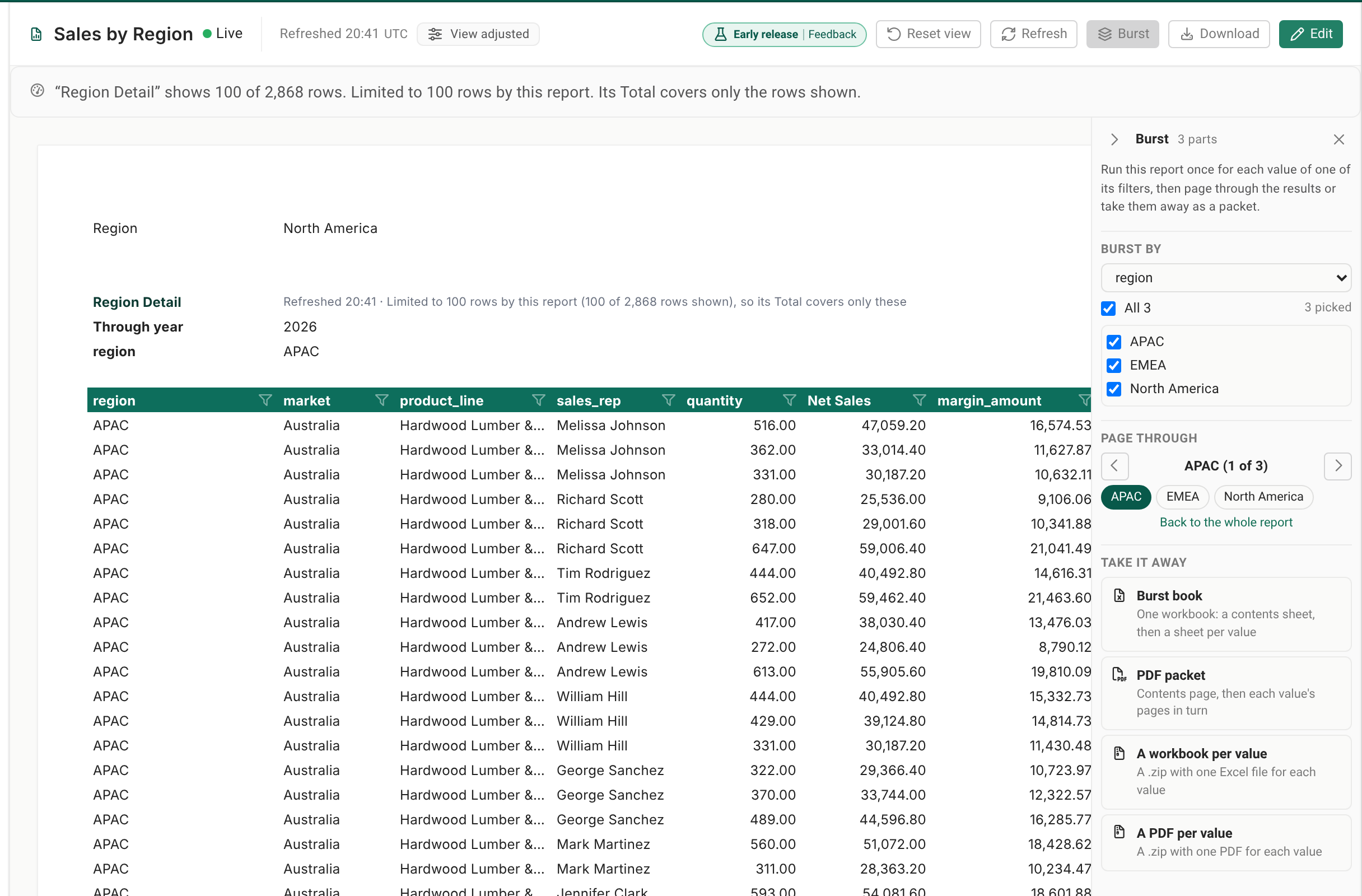
A part's value narrows the report: it never shows rows the author's own filters already left out. A value that the author's checklist leaves out gives an empty part. A fold arrow at the top of the panel folds it to a slim rail without losing your choices, and the X closes it.
Burst limits#
- A download bursts at most 60 parts. Past that the panel says
A download bursts at most 60 parts, and this is N. Narrow the values, or make it a job. - The panel lists up to 1,000 combinations to page through. Past that it shows only the count.
- A filter offers at most 500 values and says so: "
has more than 500 values. The list shows the first 500." - A burst that fails shows
The burst didn't work:and the reason. A hidden sheet whose report the burst filter does not narrow fails the burst, so no recipient is handed the whole data. - The panel never creates a job. For a recurring burst with recipients and a timetable, build a distribution job. See A web report as a job source and What is bursting.
Keep a view you adjusted#
Adjusting the viewer is never saved, and Edit opens the report as the author last saved it. That is deliberate, so one person's filter never changes a shared report. To keep what you see, pick the route that fits.
| You want to keep | Do this |
|---|---|
| The numbers as they look now | Download an Excel workbook or PDF. |
| The view and the reports, so you can reopen it live | Download, Excel, connected. Open it later in the web report studio with File, Open workbook, which makes a new web report from it. |
| A copy of the report to change | In the editor, select File, then Save a copy. The copy is saved next to the original as " |
| A new report started from Explore | In the editor, select Save as report, choose a name and folder and select Save. If that name is taken, the new one is saved as “Name (1)”. |
Your filter and expand choices from the viewer are not carried into a copy made with Save a copy from the editor, because switching to the editor drops every adjustment. To make a choice permanent, set it in the editor and select Save.
Notes and limits#
- A saved web report can be at most 25 MB. Save refuses a larger report and keeps your changes on the screen.
- An AI insight in a download carries its answer, with an out-of-date line if the data moved.
- The downloaded file and a job's file are made by the same engine, so a formula cell shows the same value in both.
Going deeper. To turn a burst into a recurring, delivered job, see Bursting and Schedule a job.
Feedback on this page
Comments, questions, requests, or something missing or unclear? Email us - the page you are on is filled in for you.
Email feedback on this pageOr write to support@reportworq.com directly.