
Global parameters#
Early release. This feature is in early release, so its screens and behavior may change. Tell us what you think with Send feedback. See Early release features and Send feedback.
A global parameter is a named value that lives at the workspace level instead of inside one job or one report. You define it once, such as the reporting year, the version, or the entity, and everything that needs it points at it. When the value changes, you change it in one place and every user of it follows on its next run.
This page is the reporting view of global parameters: what they are for next to data model variables, and the rules to know. Creating, renaming, and deleting them is covered in full in Global parameters in the User Guide.
When to use it. Use a global parameter when the same value is, or should be, identical across many jobs or many prompts. At Timberline Harvest Co. the Current Year global parameter is a subset of the time dimension in the planning model, and the Financial Statements job and the budget campaign read it as their Year. A data model variable such as {{Year}} can offer the same list of years as its choices. Use a plain variable default instead when only one view needs the value.
Where a global parameter is used#
| Place | How it uses the value |
|---|---|
| A distribution job's parameter | The author binds the job's parameter to the global parameter on the job's Parameters step. The job then runs with the global value. See Parameterize a distribution job. |
| A data model variable's Choices | A variable's prompt can take its list of values from any parameter type, Global Parameter included. The list a reader picks from then follows the global value. |
| A schedule or a run parameter | Points at the global parameter the same way a job does. |
A web report or a data model view does not read a global parameter directly. The value reaches a view only through a variable: a job or a prompt supplies the variable's value, and Reportworq fills it into the view's query as described in Data model variables.
Use a global parameter as a variable's choices#
- Open the data model, select the view, and select the Variables tab.
- On the variable's card, select Prompt.
- Under Choices, select Parameter list, then select Set the list…. The editor opens, titled Choices for
{{Name}}. - Set the parameter type to Global Parameter and pick the global parameter.
- Save the editor, then select Save Changes on the data model.
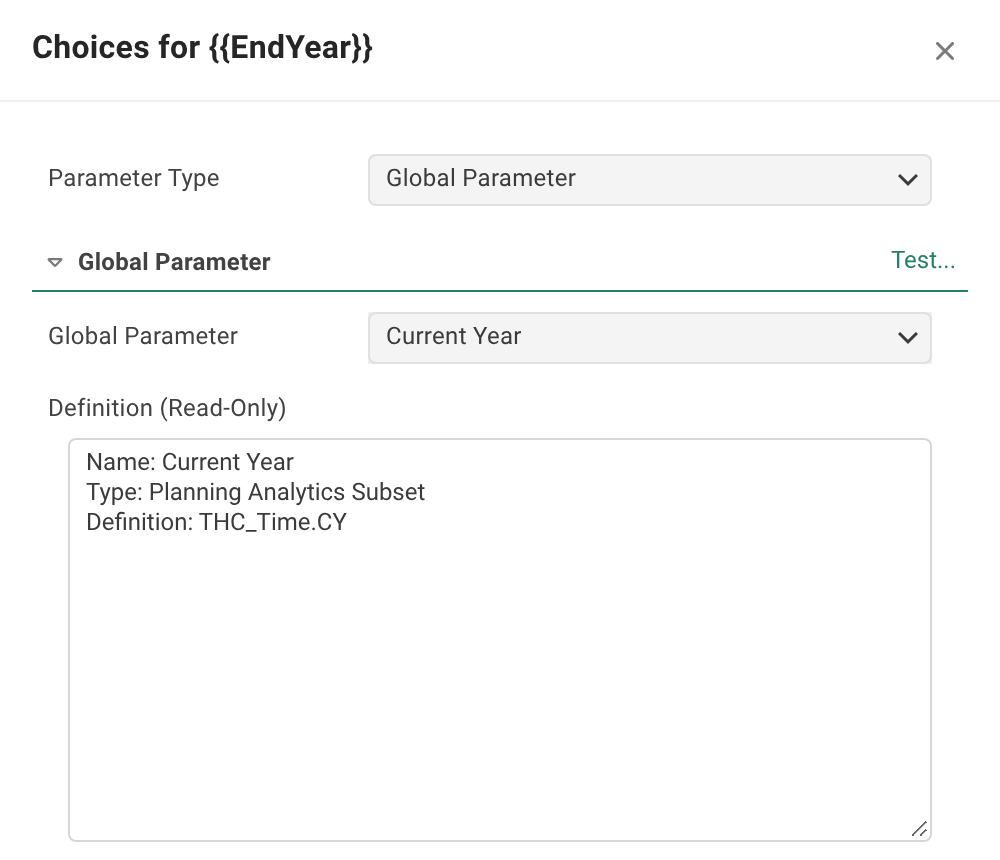
The card then reads List from: and the type. Select Edit the list… to change it.
Rules to know#
- A global parameter holds its own value. Its value can be any parameter type your installed connectors offer (a subset, a list of values, a SQL query, and so on) except Global Parameter. A global parameter can no longer point to another global parameter.
- One hop only. A job, a schedule, a run parameter, or a data model variable's choices can point at a global parameter. The global parameter itself cannot point onward.
- Older entries that already point at another global parameter are not rewritten. A job or prompt that uses one fails with an error that names both parameters. Open the entry on the Global Parameters screen and choose a value type other than Global Parameter. The list flags such an entry in its Value column.
- Changing a used value asks first. Renaming, editing, or deleting a global parameter that jobs use shows Impact Review Required and lists the affected jobs. The change applies to their future runs.
- Workspace scope. A global parameter is not shared across workspaces.
- Who sees the screen. Global Parameters is in the left side rail for authors and administrators. A reader-only user does not see it.
Going deeper. For the full steps to create and change a global parameter, and the Used In list, see Global parameters. For the parameter types a global parameter can hold, see Parameters reference. To see Timberline's
Current Yearat work, see How Timberline rolls the reporting year forward.
Related topics#
Feedback on this page
Comments, questions, requests, or something missing or unclear? Email us - the page you are on is filled in for you.
Email feedback on this pageOr write to support@reportworq.com directly.