
A web report as a job source#
Early release. This feature is in early release, so its screens and behavior may change. Tell us what you think with Send feedback. See Early release features and Send feedback.
A distribution job can take a web report as its source report, the same way it takes an Excel workbook. Each run reads the report's live data, applies the job's parameters, and delivers static output, such as a PDF or workbook, to the recipients. This is how a web report reaches readers: readers never open the report itself, they receive what the job produces.
When to use it. The finance team builds a regional P&L as a web report. A controller adds it to a job, maps a Region parameter to the report's Region filter, and the job sends each regional manager a PDF with only their region.
Before you start#
- You are an author or administrator, and the web report exists and is saved.
- You can create or change the job. If you have not built a job before, read Choose the source workbook and worksheets first. The steps here are the same as for a workbook.
Add the web report to a job#
- Open the job in the Distribution Job Editor and select the Reports step.
- Select Add a Report.
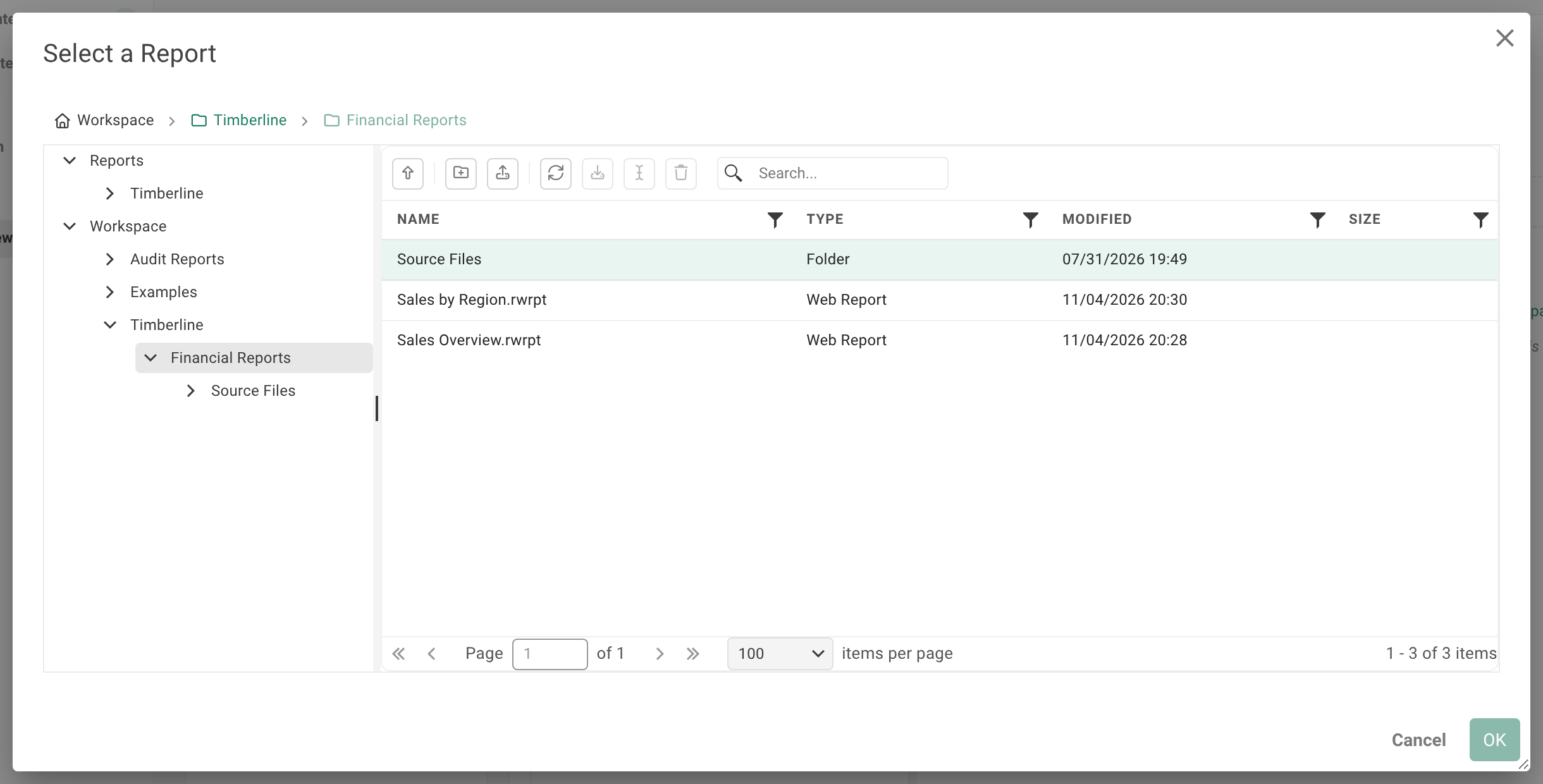
- In the Select a Report dialog, The dialog opens at the Reports root, so expand Workspace, then your folders (for example Timberline and Financial Reports), to reach the web report. A web report appears as a source named
<report name>.rwrptwith the type Web Report. - Select it and select OK.
- The report's sheets appear as a checklist. Tick the sheets the job should output and drag them into order, as for a workbook.
The sheet list shows the report as last saved, with no data read. The job reads live data when it runs.
Aim a parameter at the report's filters#
On the job's parameters, a worksheet parameter of a web report offers the report's own filters instead of cells.
- Open a sheet's parameter on the Reports step.
- In the location picker, choose a filter from the Report filters column, listed first. The picker's note reads "This is a live report: pick one of its filters and each value runs the report filtered to it, or leave it blank if this value doesn't drive the report."
- The field shows the filter by name, such as the filter's caption, and a second line says what it narrows and where (for example the sheet and report it sits on). A variable of the data model view reads "(variable)" after its name.
If a filter no longer exists in the report (it was renamed or removed), the editor says "The filter 'x' is no longer in this report (it was renamed or removed)..." and the run refuses it. Choose the filter again on the Reports step.
When several filters share a name, the picker says "Several filters are named Region: pick one from the list." Pick one from the list.
For burst sets and replicating a sheet per value, see Parameterize a distribution job and Burst with parameters.
How a job's value treats the report's own filters#
A web report is a template for distribution, like an Excel workbook with a filter cell the job overwrites. A job replaces the report's filter on that field with the value, whatever the author ticked or left out. Filters on other fields stay as built. A blank value runs the report as built.
The value is not checked against the data. A value the source does not have, such as a typo, gives what the source returns for it, often a report with no rows. This differs from the viewer's burst, which only narrows within the author's own choices.
What a run does#
- The job reads the report's live data as the job (an administrator-level read), not as a reader, then delivers static output in the formats you chose on the job. See Output formats and Destinations.
- Lists and crosstabs are refreshed. AI insights are asked again; if the ask fails, the saved answer is withdrawn and the run warns.
- The sheet is Excel's, not the studio's 1,000-row sheet. A list or crosstab that would pass Excel's last row fails its sheet with a message ending "Nothing was distributed."
- A report reads at most 1,000,000 rows, and 2,000,000 cells per report by default. A list that ranks or totals, and any data model crosstab, fails above that ceiling. The step log carries the reason.
- A run fails closed: if anything cannot be refreshed, the run says why and sends nothing, rather than sending stale data.
Professional reports#
A job over a web report that holds a professional report is refused unless the license includes professional reports. The run ends with this message (the spelling is the product's own):
Nothing was distributed: the web report '<name>' uses a professional report, which this license does not include.
See the license note on Professional reports.
Notes and limits#
- A web report converted to Excel runs as a workbook instead. See Convert to Excel.
- Hidden sheets. When a job sets a filter and a hidden sheet holds a report that the filter does not narrow, the run fails with "Sheet '
' is hidden but its report “ ” isn't filtered by “ ”, so every recipient would get all of its data. Nothing was distributed." Map the filter to that sheet too, or give the report that filter.
Going deeper. The viewer's Burst panel is a lightweight way to produce packets by hand. A job is the way to deliver them on a timetable. See Download, burst and keep a view and Schedule a job.
Feedback on this page
Comments, questions, requests, or something missing or unclear? Email us - the page you are on is filled in for you.
Email feedback on this pageOr write to support@reportworq.com directly.