
View visibility#
Early release. This feature is in early release, so its screens and behavior may change. Tell us what you think with Send feedback. See Early release features and Send feedback.
Every view in a data model has a visibility: Public, Hidden or Disabled. It decides two things: whether report authors are offered the view when they pick data, and whether the view is allowed to run. It is not a permission. Who may open the data model at all is decided by the folder permissions on the model.
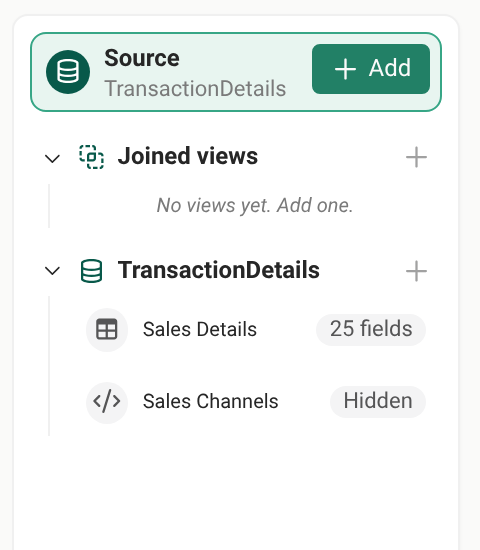
When to use it. Keep a view Hidden while you build it, or when it only exists to feed a joined view. Make it Public when report authors should find it. Set it Disabled to stop it everywhere because it is wrong. At Timberline Harvest Co., the Sales Journals model has Sales Details, which report authors pick, set to Public, and Sales Channels, a small list of channels that only supports other views, left Hidden.
The three states#
| Public | Hidden | Disabled | |
|---|---|---|---|
| Listed in the Excel add-in and the web report studio, for everyone, authors included | Yes | No | No |
| Joined views of the model can read it | Yes | Yes | No. The joined view fails, naming it |
| Runs (reports, jobs, previews in the add-in) | Yes | Yes | No. It fails, naming it |
| Editable in the data model editor, and Preview works | Yes | Yes | Yes |
| A new view starts as | Hidden |
The tooltips on the three buttons say the same in a sentence:
- Public:
Listed in the Excel add-in for everyone. Joined views can read it, and it runs. - Hidden:
Not listed in the Excel add-in, for anyone. Joined views can still read it, and reports already using it still run. - Disabled:
Doesn't run anywhere but Preview here. Not listed, and joined views and reports that use it fail, naming it.
Who sees what#
| Who | Where | Public | Hidden | Disabled |
|---|---|---|---|---|
| Model author | The data model editor | Sees and edits it | Sees and edits it | Sees and edits it, and Preview runs it |
| Report author | The Excel add-in, when picking data for a new report | Listed | Not listed | Not listed |
| Report author | The web report studio and Explore, when picking data | Listed | Not listed | Not listed |
| Anyone, with a report already built on the view | An existing Excel report, web report or distribution job | Runs | Runs | Fails, naming the view |
| Reader (a person who only reads what is shared with them) | A web report shared with them | Runs | Runs, if they can see the data model's folder | Fails, naming the view |
| Reader | The Excel add-in | Sees no views, whatever their visibility | Sees no views | Sees no views |
Points that table cannot carry:
- Authors get no special list. The rule is the same for everybody: only Public views are listed, authors' own included. To use a Hidden view in a new report, set it to Public, build the report, and set it back. The report keeps running.
- A model with no Public view is not listed in the add-in or the studio, unless it also has Direct queries on, which lists it for New query.
- Readers in the Excel add-in see the notice
Live reports in Excel are for authors. Ask your administrator for author access.instead of a list of views. Readers reach data through web reports and through the output of distribution jobs, not by building in the add-in. - A reader can run a Hidden view if they can see the model's folder, for example through a shared web report built on it. See Hidden is not a permission.
Set a view's visibility#
- Open the data model with Edit from its row in the workspace, and select the view in the rail.
- In the view's header, choose Public, Hidden or Disabled. The three buttons sit beside Delete view. Hover a button to read what it does.
- If you choose Disabled and something in the model uses the view, Reportworq opens Disable view and lists what uses it: joined views, relationships between views, level hierarchies, and views whose variable choices are listed from it. Choose to go ahead or cancel. Reports and jobs already bound to the view are not listed, because the model does not record them.
- Select Save Changes. The new visibility takes effect for everyone when the model is saved.

In the rail, a view that is Hidden or Disabled says so on the right of its row. A Public view shows its field count instead.
What a Disabled view does#
A Disabled view never runs outside the data model editor's Preview. Every other way of running it is refused with a message that names the view:
“Sales Channels” is disabled. Set it to Public or Hidden in its data model to run it.
The refusal applies to Excel reports, web reports, distribution jobs, a variable's choice list read from the view, and a joined view that has the view as an input, even in Preview. A joined view over a Disabled input fails before it reads any source. In the editor, the view's status as you have it unsaved counts, so an input you just set to Disabled is refused before you save.
To bring the view back, set it to Public or Hidden and save.
What a Hidden view does#
A Hidden view is left out of the lists, and nothing else changes:
- Reports and jobs already using it keep running. Hiding a view is how you retire it from the picker without breaking anything.
- Joined views read it like a Public view. A Public joined view can sit over several Hidden input views, so authors see one clean view and not the building blocks.
- Hierarchies and variable choices can still be built from it.
Hidden is not a permission#
Hidden only leaves a view out of the lists in the Excel add-in and the web report studio. Anyone who can see the data model through its folder permissions can run a Hidden view, readers included. A web report that is shared with readers shows them the rows of the Hidden view it is built on.
To keep data private:
- Put the data model in a folder that only the right people can see, or
- Set the view to Disabled.
Save warnings follow visibility#
If a view's query cannot run when you save, the warning depends on its visibility. A Public view gets a modal that says it will not run and suggests setting it to Hidden or Disabled, because report authors can pick it. A Hidden or Disabled view whose fields could not be read gets only a light notice, because nobody is offered it.
Notes and limits#
- Each view has its own setting. A model can hold any mix.
- Direct queries skip views, and so visibility. See Direct queries.
- Upgrading from an earlier version. Views that were Published are now Public, and views that were Draft are now Hidden. Nothing that ran before stops running. Authors no longer see Draft (now Hidden) views in the Excel add-in. A reader with access to the model's folder can now run a view that used to be a Draft one, so before you upgrade, protect any such view that holds data readers should not see with folder permissions, or set it to Disabled afterward.
- Rolling back. An earlier version does not know Disabled and treats a Disabled view like a draft one, which runs. Do not roll back past this version while views are Disabled, or first set those views to Hidden and expect them to run.
- Sharing a model across servers. Export and import carry each view's visibility. A model exported from an earlier version arrives with Draft views as Hidden and Published views as Public.
Going deeper. The full tour of the model editor is in Data models. For how joined views read their inputs, see Join views across sources.
Feedback on this page
Comments, questions, requests, or something missing or unclear? Email us - the page you are on is filled in for you.
Email feedback on this pageOr write to support@reportworq.com directly.