
Direct queries#
Early release. This feature is in early release, so its screens and behavior may change. Tell us what you think with Send feedback. See Early release features and Send feedback.
A data model normally hands report authors views: curated sets of fields you have named, filtered and made Public. Direct queries is a model-level option that adds a second path. When it is on, a report author in the Excel add-in can write or build a query against one of the model's sources and use the result's own columns, with no view in between.
When to use it. Use it for a one-off, well-understood or exploratory pull where building a view is more work than the answer is worth. At Timberline Harvest Co., an analyst who already knows the exact SQL for an extract from the TransactionDetails workbook can run it as a direct query, or look at a source before deciding whether it deserves a curated view. For reporting that many people share and that must survive changes to the source, build a view instead.
A view or a direct query#
| Public view | Direct query | |
|---|---|---|
| Who builds it | The model author, once | The report author, in the report |
| Fields | Curated names, types and mappings that survive a change to the source | The query's own columns, as the source returns them |
| Where it is stored | In the data model, reusable by many reports, jobs and forms | Inside the one report's workbook |
| Visibility (Public, Hidden, Disabled) | Applies | Does not apply, because no view is involved |
| Shared and governed | Yes | No |
| If the source's schema changes | The model author re-maps the field and reports keep working | The report's query may break |
Before you start#
- You can edit the data model.
- The model has at least one source. A connection or a workspace file both work. See Bring several sources into one model.
Turn direct queries on#
- Open the data model and select Source in the rail, then the Sources tab.
- Under Options, tick Direct queries. Its label reads Report authors can query this data model's sources directly.
- Select Save Changes.
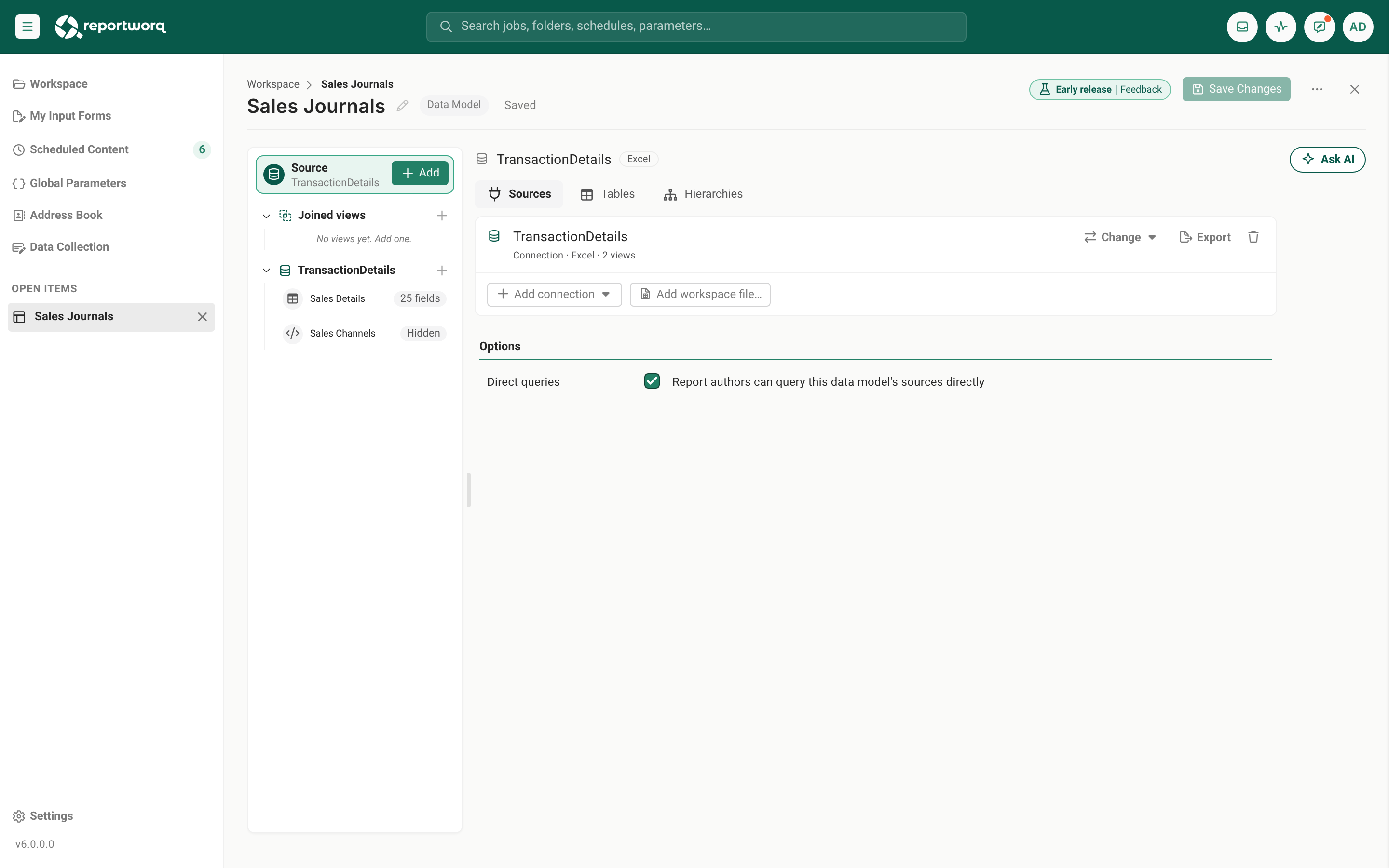
The option is off by default, so a model is view-only until someone turns it on. It is one checkbox for the whole model: it applies to every source the model reads.
What the report author sees#
In the Excel add-in's report builder, on the Connect step, the model lists its Public views as before. With direct queries on:
- The model is listed even if it has no Public view yet.
- Under the model there is a New query entry. If the model reads several sources, there is one for each, named for the source: New query · TransactionDetails, New query · Timberline Journal Data.
- Choosing it opens Build a query, with the same query editor the model author gets for that source: the table designer or SQL for a database or workspace file, the connector's own query settings for other sources. If the query has
{{variables}}, the author supplies a sample value for each so the query can run. - Build query runs it and moves on to the Fields step, where the author picks and arranges the columns like any other report.
- When the report is reopened later, the query opens again for editing.
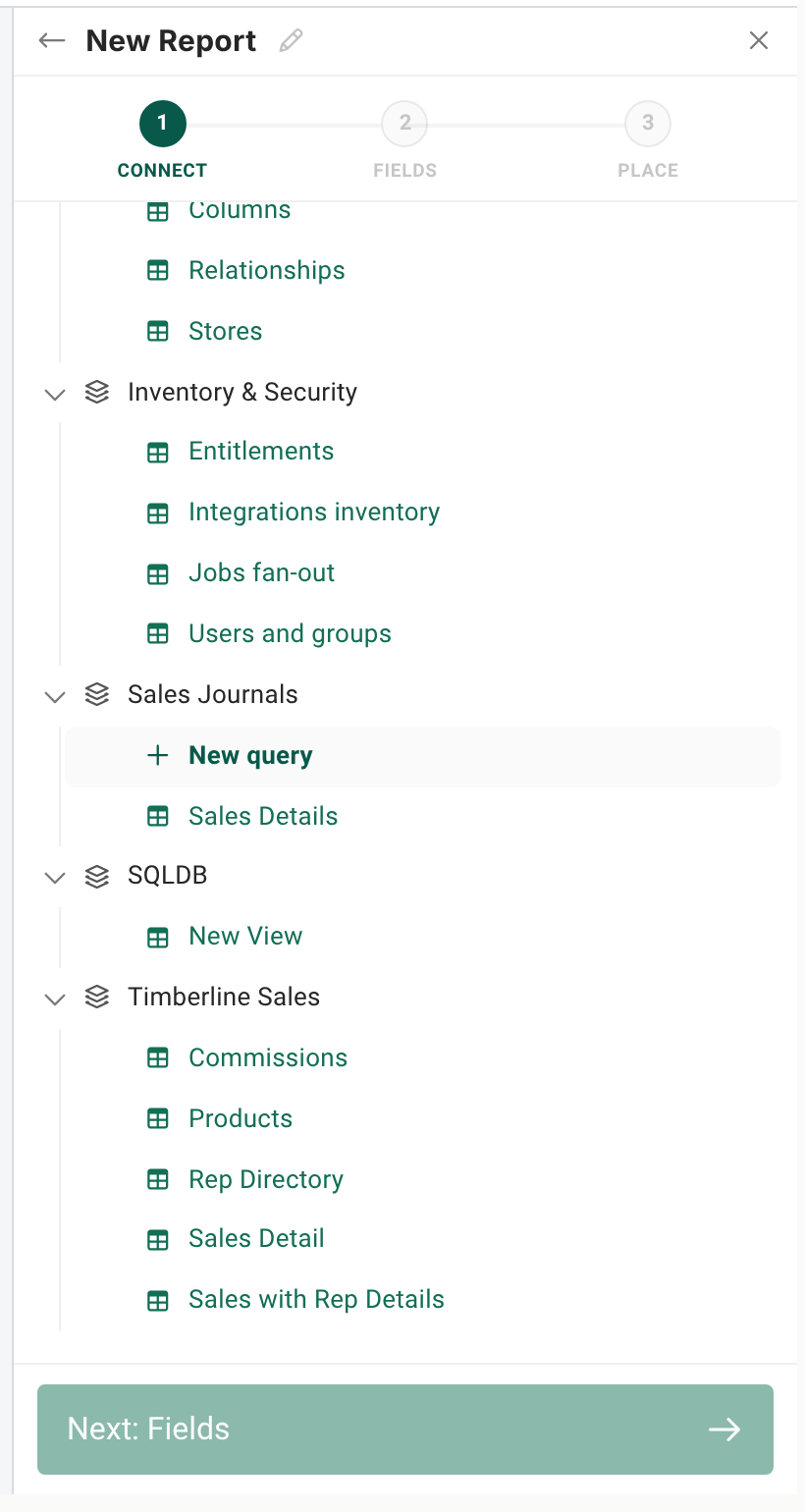
The query is saved inside the report's workbook, not on the server, and it is not a view of the model. See The Excel add-in analyst pane for the rest of the report builder.
What is checked when the report runs#
The report carries its own query, so Reportworq checks it every time it runs, on the server:
- The query's source must be a source of a data model that the person running it can see and that has Direct queries on. If not, the run fails with
This report's direct query reads a source that no data model you can see allows direct queries on. Turn on Direct queries on the data model, or bind the report to one of its views. - A direct query cannot be a joined view. A report that tries is refused with
A direct query can't be a joined view. Bind the report to a saved view instead.
Turning the option off therefore stops the direct-query reports that depend on it, with the first message above, until you turn it back on or the authors rebind those reports to views. Views and the reports built on them are not affected.
Notes and limits#
- It opens the source, not just the tables you modeled. A direct query can read anything the connection can read, so choose which models turn it on with that in mind. The folder permissions on the data model decide who can see the model and so who can use it. See View visibility for the other ways a model limits what people see.
- No curated fields. Renames, types, hidden fields and the model's variables belong to views, so a direct query has none of them. A
{{variable}}in a direct query belongs to the report, which supplies its values when it is placed on the sheet. - It cannot join across sources. A direct query reads one source. To combine sources, build a joined view. See Join views across sources.
- Direct queries are offered in the Excel add-in's report builder.
Going deeper. To build the governed alternative, see Build a view with the designer and View visibility.
Feedback on this page
Comments, questions, requests, or something missing or unclear? Email us - the page you are on is filled in for you.
Email feedback on this pageOr write to support@reportworq.com directly.