
Field filtering#
Early release. This feature is in early release, so its screens and behavior may change. Tell us what you think with Send feedback. See Early release features and Send feedback.
A field filter is one or more conditions on a field of a view. Every row the view returns, in Preview, in the Excel add-in, in a web report and in a distribution job, has to pass them. You set the condition once on the model and every report that uses the view gets the narrowed rows without repeating it.
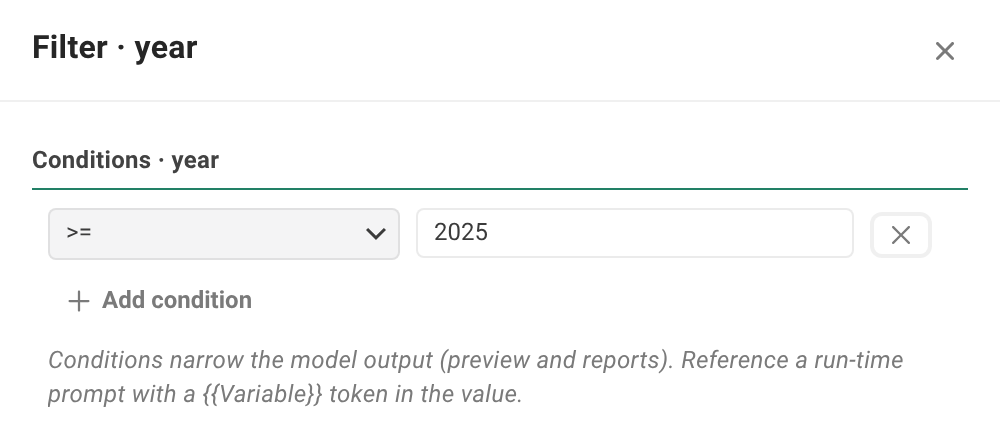
When to use it. Use a field filter to keep a view to the rows people should always report on. At Timberline Harvest Co., the Sales Details view holds every invoice line since 2022. A filter on year of >= 2025 keeps a view to the current years, and a filter on paid_status of = Open makes a view of unpaid invoices for collections reports. To let each report choose the value, put a {{variable}} in the filter instead of a fixed value.
Before you start#
- You can edit the data model, and the view has a Fields tab with the field you want to filter. A field must be mapped (it shows the green mapped chip) to have a filter. An unmapped field is left out of the model, so it has no filter button.
- To use a variable in the filter, read Data model variables first. It covers defaults, required values and how a value is written into the query.
Filter a field#
- Open the data model, select the view in the rail, and select its Fields tab.
- On the field's row, select the filter button. Its tooltip reads Filter this field. The Filter panel opens at the side, titled with the field's name, with a Conditions section.
- Select Add condition.
- Choose the operator from the list on the left, and type the value on the right. The box shows the hint
Value or {{Variable}}. Operators such as Is Null show no value needed. - To add more conditions on the same field, select Add condition again. Once there are two or more, a Match control appears with all and any: all keeps a row only if it passes every condition, any keeps it if it passes at least one.
- To remove a condition, select the x beside it (Remove condition).
- Close the panel and select Save Changes. Check the result on the view's Preview tab.
A field that has conditions shows a filled filter icon, and its tooltip reads 1 filter condition(s). Edit. A condition that needs a value but has none is dropped when you close the panel, so a half-finished condition never narrows anything.
Value rules#
- Type the value as it is. Write
Open,USA - Eastor2025, with no quotes. Reportworq writes the value into the source's query for you, using the field's type. A value typed as'USA - East'is searched for with its quotes and matches nothing. - Use a variable for a value chosen at run time. Write
{{Region}}in the value box, with double braces and no quotes. The variable then appears on the view's Variables tab, where you set its default and whether it is required. A condition on an optional variable left blank is dropped, so the report sees all rows. See Data model variables. - Is Contained In takes a list. Write
EMEA, APAC. Items are separated by commas, and an item that has a comma in it goes in quotes. - Dates and numbers are checked against the field's type. A value that is not a number for a number field is refused with its own message, not silently ignored.
Operators#
| Operator | Keeps a row when the field... | Needs a value |
|---|---|---|
= |
equals the value | Yes |
<> |
differs from the value | Yes |
<, <=, >, >= |
is less than, at most, greater than, or at least the value | Yes |
| Starts With, Ends With | starts or ends with the text | Yes |
| Contains | contains the text | Yes |
| Does Not Contain | does not contain the text | Yes |
| Is Contained In | is one of a list of values | Yes, a list |
| Is Null, Is Not Null | has no value, or has a value | No |
| Is Empty, Is Not Empty | is an empty text, or is not | No |
| Is Null Or Empty, Is Not Null Or Empty | is missing or empty, or is not | No |
The list shows every operator for every type of field. On a number, date or true/false field a value is never empty, so Is Empty keeps nothing and Is Not Null Or Empty is the same as Is Not Null.
How filters combine#
- Within one field, the Match control decides: all or any.
- Across fields, a row must pass the filters of every field that has one. Filtering
yearandpaid_statuskeeps rows that satisfy both. - A hidden field can still carry a filter. Hiding a field removes it from the report author's field list but keeps it usable in a filter, so you can filter on a key column without exposing it.
Where filters run#
A filter runs in the source's own query wherever the source can express it, so the database returns only the matching rows and less data crosses the network. There is nothing to switch on.
- SQL sources (SQL Server, Oracle, PostgreSQL, SQLite, and Excel and SQLite workspace files, among others) filter at the source. The result is the same as filtering in memory, with the differences listed below.
- Other sources, such as Planning Analytics and the planning-tool APIs, cannot express the condition in their own query language, so Reportworq retrieves the rows and filters them in memory. You get the same result, with more data moved.
- If a filtered read fails at the source, Reportworq reads the view whole (up to the limit an administrator sets for joined inputs), filters it in memory, and adds the warning
Filtered after reading every row. The rows are right, but the run reads more than it needs to. If the view is larger than that limit, the run fails and tells you to change the view's SQL or narrow it with a variable.
When the same filter returns different rows#
Because the database does the filtering, a few comparisons follow the database's rules and not Reportworq's:
| Difference | What to expect |
|---|---|
| Case and text order | Whether maine matches Maine, and how text sorts, follow the database's collation. If a filter returns different rows than you expect, check how the source compares text. |
| Trailing spaces | SQL Server treats text with trailing spaces as equal. |
% and _ in Contains or Starts With |
They act as wildcards at a SQL source. In memory they are plain characters. |
| Is Contained In | At a SQL source it matches whole values from the list. In memory it matches pieces of the text. The source is the one to trust. |
| Access over ODBC | Text empty conditions fall back to the capped in-memory read. |
Notes and limits#
- Preview always runs the view fresh, so it shows a filter you just set.
- Joined views can carry their own filters on their fields, and an optional variable in one is handled the same way. See Join views across sources.
- Calculated fields do not exist. A filter applies to a mapped source column. See Data models.
- Filtering is not security. A filter narrows what a view returns, but anyone who can run the view gets the rows that pass it. To keep data private, use folder permissions on the model. See View visibility.
Going deeper. For defaults, prompts and how a variable's value is written into the query, see Data model variables. For the Fields tab in full (renaming, hiding and reordering), see Data models.
Feedback on this page
Comments, questions, requests, or something missing or unclear? Email us - the page you are on is filled in for you.
Email feedback on this pageOr write to support@reportworq.com directly.